Running Flatcar Container Linux on DigitalOcean | Flatcar Container Linux
Running Flatcar Container Linux on DigitalOcean
On Digital Ocean, users can upload Flatcar Container Linux as a
custom image
. Digital Ocean offers a
quick start guide
that walks you through the process.
In some cases upload of bzip2 compressed custom images has been seen to timeout/fail. In those cases we recommend re-compressing the image files using gzip and uploading to a custom location.
The import URL should be https://<channel>.release.flatcar-linux.net/amd64-usr/<version>/flatcar_production_digitalocean_image.bin.bz2. See the
release page
for version and channel history.
At the end of the document there are instructions for deploying with Terraform.
Butane Configs
Flatcar Container Linux allows you to configure machine parameters, configure networking, launch systemd units on startup, and more via Butane Configs. These configs are then transpiled into Ignition configs and given to booting machines. Head over to the
docs to learn about the supported features
. Note that DigitalOcean doesn’t allow an instance’s userdata to be modified after the instance has been launched. This isn’t a problem since Ignition only runs on the first boot.
You can provide a raw Ignition JSON config to Flatcar Container Linux via the DigitalOcean web console or
via the DigitalOcean API
.
As an example, this Butane YAML config will start an NGINX Docker container:
cat cl.yaml | docker run --rm -i quay.io/coreos/butane:latest > ignition.json
Adding more machines
To add more instances to the cluster, just launch more with the same Butane Config. New instances will join the cluster regardless of region.
SSH to your droplets
Container Linux is set up to be a little more secure than other DigitalOcean images. By default, it uses the core user instead of root and doesn’t use a password for authentication. You’ll need to add an SSH key(s) via the web console or add keys/passwords via your Ignition config in order to log in.
To connect to a droplet after it’s created, run:
1
ssh core@<ip address>
Launching droplets
Via the API
For starters, generate a
Personal Access Token
and save it in an environment variable:
Save the numeric image ID from the previous command in an environment variable:
1
read IMAGE_ID
Create a 512MB droplet with private networking in NYC3 from the image create above and an Ignition JSON configuration file config.ign in your current directory:
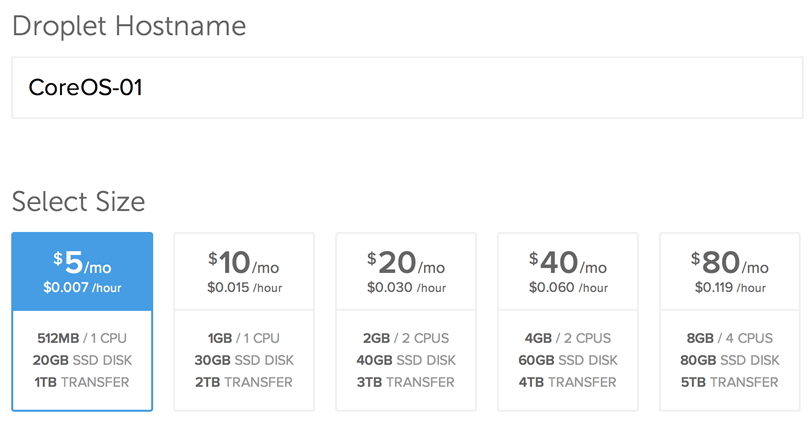
Give the machine a hostname, select the size, and choose a region.
Choosing a size and hostname
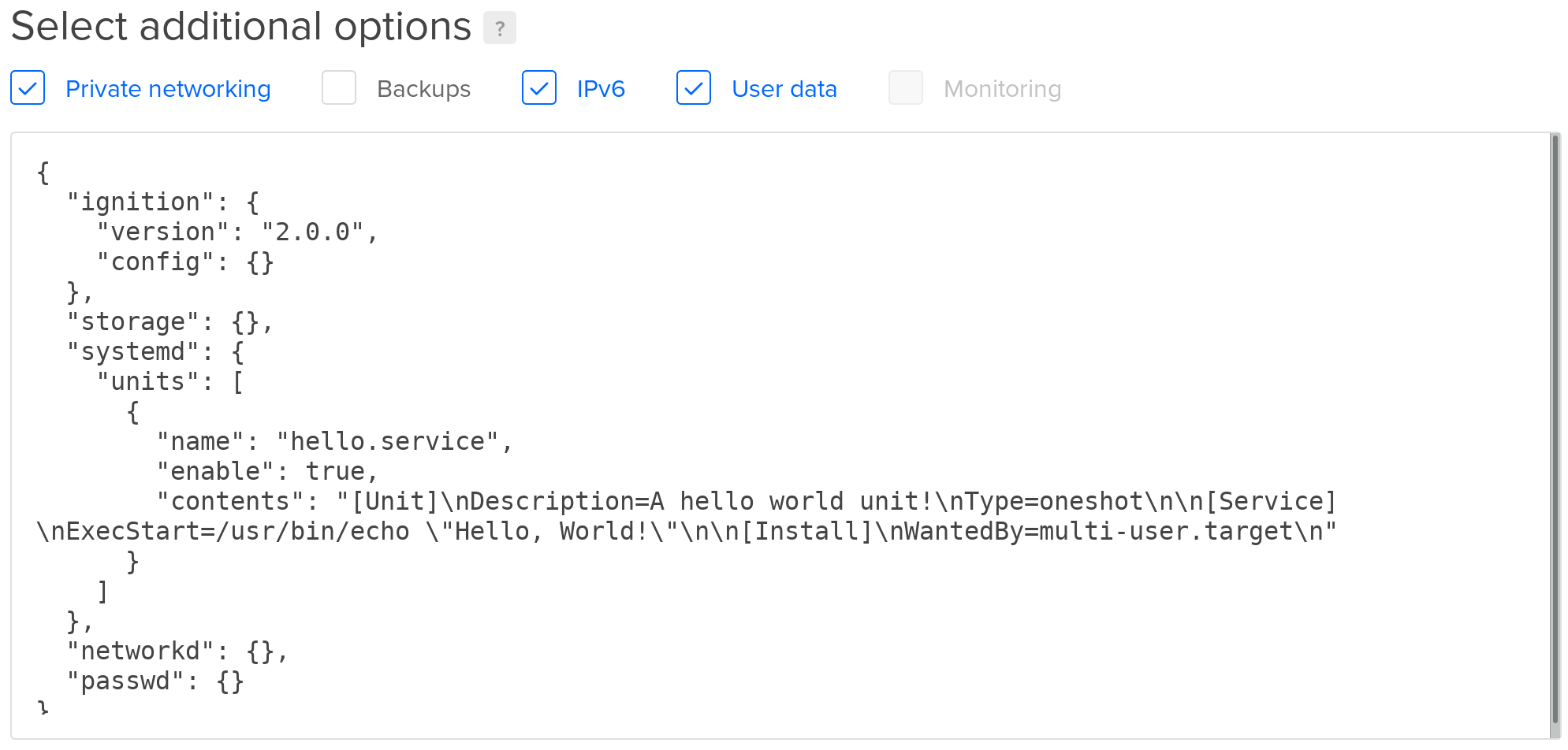
3. Enable User Data and add your Ignition config in the text box.
Droplet settings for networking and Ignition
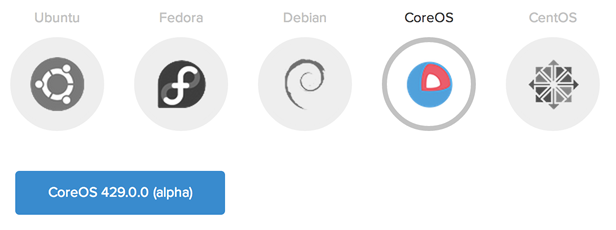
4. Choose your preferred channel of Container Linux.
Choosing a Container Linux channel
5. Select your SSH keys.
Note that DigitalOcean is not able to inject a root password into Flatcar Container Linux images like it does with other images. You’ll need to add your keys via the web console or add keys or passwords via your Butane Config in order to log in.
The
digitalocean
Terraform Provider allows to deploy machines in a declarative way.
Read more about using Terraform and Flatcar
here
.
The following Terraform v0.13 module may serve as a base for your own setup.
It will also take care of registering your SSH key at Digital Ocean and creating a custom image.
gitclonehttps://github.com/flatcar/flatcar-terraform.git# From here on you could directly run it, TLDR:cddigitaloceanexportDIGITALOCEAN_TOKEN=...terraforminit# Edit the server configs or just go ahead with the default exampleterraformplanterraformapply
Start with a digitaloecan-droplets.tf file that contains the main declarations:
variable"machines"{type=list(string)description="Machine names, corresponding to machine-NAME.yaml.tmpl files"}variable"cluster_name"{type=stringdescription="Cluster name used as prefix for the machine names"}variable"ssh_keys"{type=list(string)description="SSH public keys for user 'core' (and to register on Digital Ocean for the first)"}variable"server_type"{type=stringdefault="s-1vcpu-1gb"description="The server type to rent"}variable"datacenter"{type=stringdescription="The region to deploy in"}variable"flatcar_stable_version"{type=stringdescription="The Flatcar Stable release you want to use for the initial installation, e.g., 2605.12.0"}
An outputs.tf file shows the resulting IP addresses:
Now you can use the module by declaring the variables and a Container Linux Configuration for a machine.
First create a terraform.tfvars file with your settings:
The machine name listed in the machines variable is used to retrieve the corresponding
Butane Config
.
For each machine in the list, you should have a machine-NAME.yaml.tmpl file with a corresponding name.
For example, create the configuration for mynode in the file machine-mynode.yaml.tmpl:
1
2
3
4
5
6
7
8
9
10
11
12
13
14
15
16
17
18
---passwd:users:- name:coressh_authorized_keys:- ${ssh_keys}storage:files:- path:/home/core/worksfilesystem:rootmode:0755contents:inline:| #!/bin/bash
set -euo pipefail
# This script demonstrates how templating and variable substitution works when using Terraform templates for Container Linux Configs.
hostname="$(hostname)"
echo My name is ${name} and the hostname is $${hostname}
Finally, run Terraform v0.13 as follows to create the machine: